Line Reader turns your mouse into a helper line, to easily guide your eyes while reading long documents.
Have you ever felt completely overwhelmed by pages and pages of online text, like what you find in research papers, news magazine articles, and technical documentation?
As you scroll through these long documents, you find yourself losing your spot, rereading the same sentences over and over, and generally causing headaches, disorientation, and burnout.
What if there was one simple application that could help guide your eyes while reading, making digesting long electronic documents easier and more efficient? That’s the core reason behind Line Reader, along with a few bonus features that will make this app an indispensable part of your user experience!
Line Reader addresses a dilemma that we all face at some point – how to manage reading long documents online.
If we were reading a book or printed article, we could use an index card to mark our place and guide our eyes as we read. Since holding an index card up to your computer screen is impractical, we’ve created Line Reader to navigate you through the rough waters of electronic documentation.
With Line Reader, your mouse cursor transforms into a handy reading aid, taking the form of a horizontal line that you use to track your spot in any online document or web page. You can customize the length, width, and color of your line, as well as invoke a secondary helper line that serves to further emphasize the location of your cursor.
One click, and your line flips to the vertical, which is convenient for highlighting entire paragraphs, steps in a recipe, or assembly instructions.
As amazingly useful as Line Reader is, we’ve made it even better by including some handy bonus features! First, there’s the Magnifier Window, which offers an enlarged view of anything that you hover your line cursor over and a screen grabber. Then there’s the Measurement Window that gives you the ability to measure anything that you can see on your computer screen. Finally, we have the Tag Along Form Window, a resizable, customizable box that attaches to your line cursor and serves as an appointment reminder, image holder, or text box!
Version 2 of Line Reader now includes saved profiles, a multiline capability, keyboard nudge control and auto scrolling lines. We've also added the capability to change the way the line itself functions, inverting the text beneath it, or using a number of graphical effects. Just take a look at our videos of Line Reader in action and you'll see how useful this application really is.
Line Reader by AntoniasApps is a software utility designed to make reading text on your computer screen easier and more comfortable. Line Reader is particularly useful to users in need of assistance to focus on specific lines of text while reading, especially in long documents or even on web pages.
It offers a very simple yet very effective solution to improve your reading.
Using Line Reader you can do the following:
Highlight Text: One of Line Reader’s key features is its ability to highlight specific lines of text, helping users maintain their place and follow the content more easily.
Navigate Easily: With intuitive controls, users can smoothly move between lines or pages, making navigation simple and enhancing the overall reading experience.
Support for Multiple Formats: Line Reader is compatible with a variety of document formats and websites, providing users with a convenient and versatile solution for accessing text from different sources.
Simple and Distraction-Free Interface: The application features a clean and straightforward interface designed to reduce distractions, allowing users to focus more effectively on their reading.
Settings: Line Reader offers flexible customization options, allowing users to adjust the line color, transparency, and thickness based on their personal preferences and reading needs.
The benefits of using Line Reader are particularly valuable for individuals who frequently work with large amounts of text. Some of its key advantages include:
Improved Focus: By highlighting the specific lines being read, Line Reader minimizes visual distractions from surrounding text, helping users maintain concentration.
Better Comprehension: Focusing on a limited portion of the text at a time can make information easier to process, understand, and retain.
Support for Learning: The application can be useful for both students and professionals by facilitating reading, note-taking, and the effective summarization of important information.
Accessibility Support: Line Reader can also function as an assistive reading tool for individuals who experience reading difficulties, including those with ADHD or dyslexia, by providing a more structured and focused reading experience.
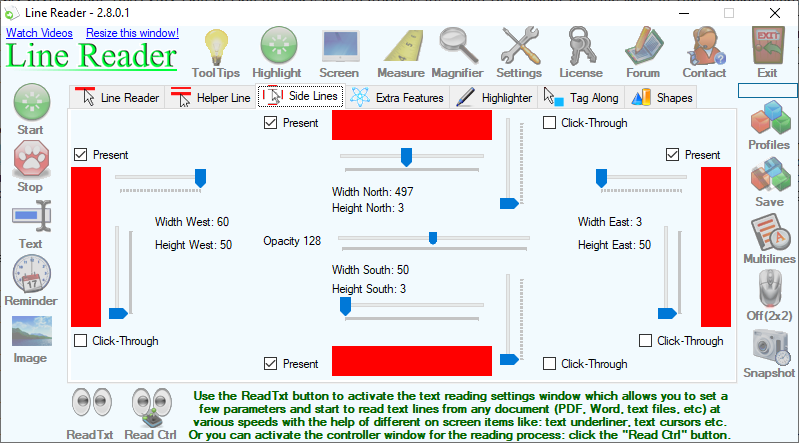
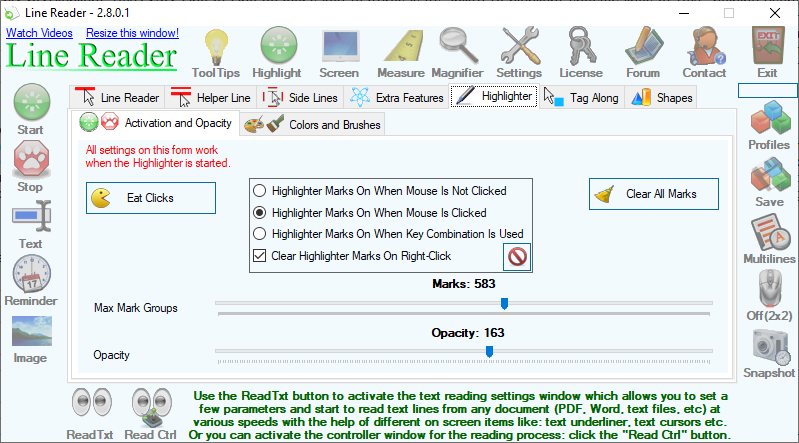
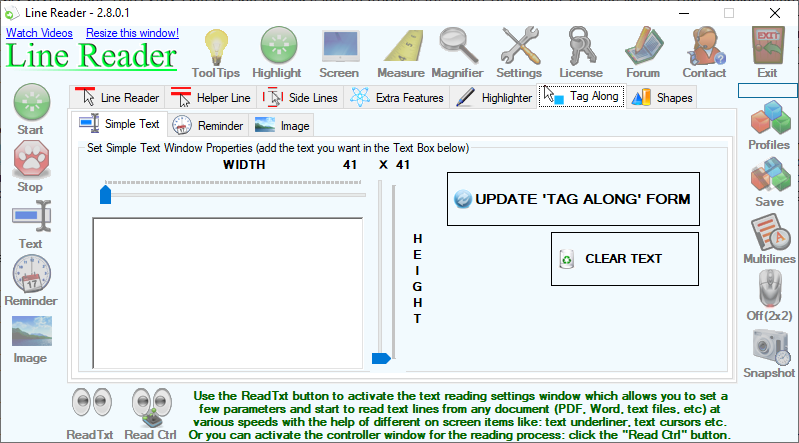
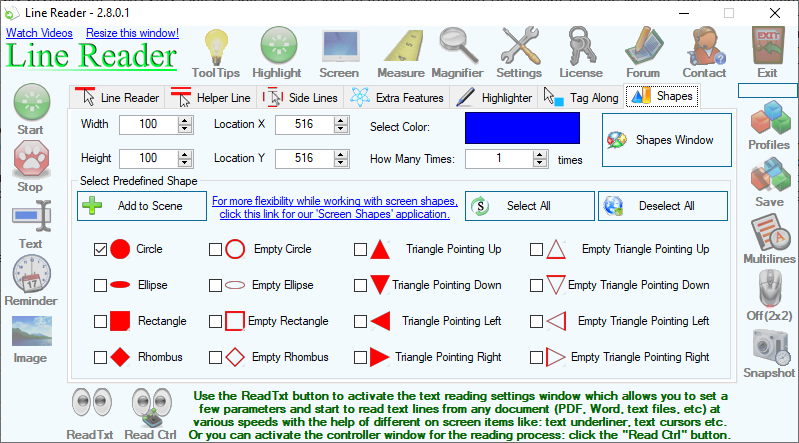
Here are several screenshots of Line Reader's features:
You can press on any of the images below to see a higher-resolution version of each image.
Here is what ChatGPT says you can do with the Line Reader application:
Use your mouse cursor as a reading guide when reading long documents or web pages.
Highlight the line of text you are currently reading.
Keep your place while reading long articles, research papers and technical documentation.
Make reading large amounts of text easier and more comfortable.
Reduce the possibility of losing your place while moving through long documents.
Customize the width and height of the Line Reader.
Change the color of the Line Reader.
Adjust the position of the Line Reader relative to the mouse cursor.
Make the Line Reader horizontal for normal text reading.
Flip the Line Reader vertically when working with paragraphs, recipes or assembly instructions.
Add a secondary Helper Line to further emphasize the location of the mouse cursor.
Customize the size, color and distance of the Helper Line from the mouse pointer.
Use multiple parallel lines to highlight several lines of text at once.
Choose how many parallel lines are displayed, with up to 30 lines available.
Use color filtering to change the way text and other screen content appears beneath the Line Reader.
Use the Hi-Lite feature to emphasize a specific area in the Line Reader.
Change the zoom factor used with Color Filtering.
Take screenshots of your computer screen.
Take snapshots using the Line Reader's snapshot functionality.
Automatically save snapshots to a folder of your choice.
Magnify anything underneath the mouse pointer using the built-in Magnifier window.
Choose a magnification level from 2× up to 36×.
Resize the Magnifier window independently of the magnification level.
Highlight the exact pixel underneath the mouse pointer.
Find out the color of any pixel on your screen.
View pixel colors as RGB, HSL, HEX and Web Safe values.
Measure objects and distances directly on your computer screen using the Measurement window.
Attach a Text Tag Along window to the mouse pointer.
Use the Text Tag Along window as a convenient floating text box.
Attach a Reminder Tag Along window to the mouse pointer.
Use the Reminder Tag Along window as an on-screen appointment or task reminder.
Attach an Image Tag Along window to the mouse pointer.
Keep an image visible next to the area of the screen you are working with.
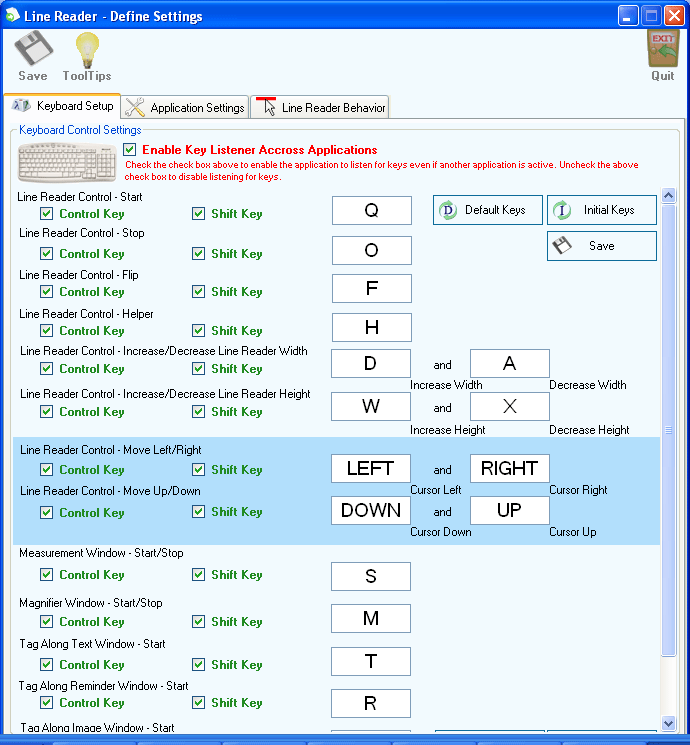
Move the mouse cursor using keyboard combinations.
Configure your own keyboard shortcuts for Line Reader functions.
Activate and deactivate Line Reader features using shortcut keys.
Hide the mouse cursor when necessary.
Create profiles containing your preferred Line Reader settings.
Save settings such as Line Reader size, position, Helper Line settings and other options in profiles.
Quickly switch between different saved profiles.
Use different Line Reader configurations for different reading or working situations.
Automatically start Line Reader when Windows starts.
Check automatically for new versions of Line Reader.
Manually check for a newer version whenever you want.
Adjust how far the mouse cursor moves when using keyboard controls.
Configure the timer used for automatic snapshots.
Keep your snapshots organized in a dedicated folder.
Use Line Reader while reading web pages, electronic documents and other content displayed on your computer screen.
Use Line Reader as a visual reading aid when studying, researching or working with large amounts of text.
Use the application to make reading less distracting by concentrating attention on a specific line or area of the screen.
Use the Magnifier, Measurement, Snapshot and Tag Along tools as additional utilities while working with other applications.
Keep frequently used Line Reader configurations ready to use through saved profiles.
Use Line Reader as a combination of a reading guide, screen magnifier, screen measurement tool, pixel color viewer, screenshot utility and on-screen reminder tool.
Key Takeaway:Line Reader is a practical tool for digital readers: it is a versatile tool that can benefit a broad range of users, from students seeking greater focus while studying to professionals who regularly work with digital documents. By improving readability and maintaining a simple, user-friendly design, it can be a useful addition to any productivity toolkit. Whether for academic work or everyday reading, Line Reader offers a practical way to make digital content easier and more comfortable to navigate.
For those looking for a simple solution to improve their reading experience on digital screens, Line Reader by AntoniasApps is worth considering. Its combination of useful productivity features, ease of use, and accessibility-focused functionality makes it a practical choice for anyone aiming to make digital reading more efficient and enjoyable.
Line Reader runs on Windows XP, Vista, 7, 8/8.1, 10, and 11, in both 32-bit and 64-bit versions.
You may download the feature limited trial, and evaluate the software for as long as you need
.Net Framework required
The software is licensed per computer
Free lifetime upgrades
Free technical support via email
The registration code will be sent by e-mail after your purchase is confirmed
A license is only $19.50
Purchase Line Reader using one of the following options:
Buy via FastSpring at 50% off:
Read text more easily by attaching the line to the mouse pointer.
Attach multiple parallel lines to the line reader
Use color filtering for the line reader
Take snapshots of the screen and also from the line reader
Measure items on the screen by activating the Measurement window.
Magnify items on the screen by activating the Magnifier window.
View current pixel color (shows RGB, HSL, HEX and WEB SAFE values for the pixel under the mouse cursor)
Use Text, Reminder or Image 'Tag Along' windows to follow the mouse pointer.
Hide the mouse cursor
Move mouse cursor using key combinations (for example, CTRL+SHIFT+RIGHT is the default combination for moving the mouse to the right)
Use Shortcut Keys to activate/deactivate the functionalities above
Create profiles and select and apply created profiles from a list
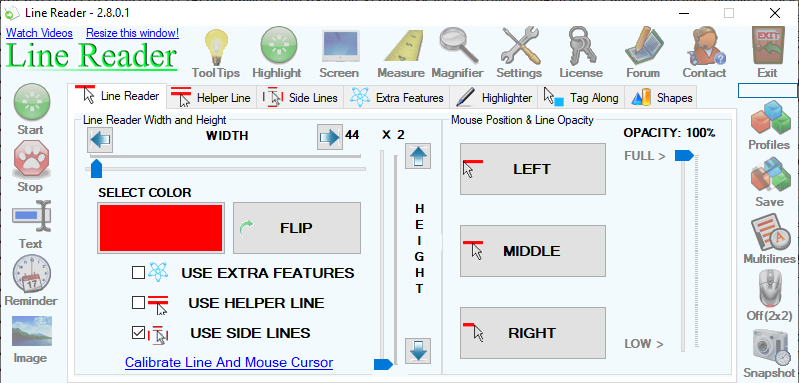
the 'Start' button starts the line reader and the Helper Line. The Helper Line is started only if the "USE HELPER LINE" checkbox is checked. The Helper Line can also be started/stopped later by simply checking the "USE HELPER LINE" button
the 'Stop' button stops any of the following: the line reader, the Multi Lines, the Helper Line, the text ' Tag Along', the reminder 'Tag Along', the image 'Tag Along'
the 'Text' button starts the text 'Tag Along' window
the 'Reminder' button starts the reminder 'Tag Along' window
the 'Image' button starts the image 'Tag Along' window
the 'Measure' button starts the measurement window
the 'Magnifier' button starts the magnifier window
the 'Settings' button shows the settings for the application like key settings, application settings and Line Reader settings
the 'License' button allows you to register the application
the 'Forum' button allows you to go to the application online forum
the 'Contact' button allows you to access the application's help files, view the application videos or go to the contact or after install information web page.
the 'Save' (profiles) button allows creating of new profiles from current runtime application values such as: line reader width/height, line reader position, helper line height, helper line distance from mouse, whether to use extra features and many others.
you can select the color for the line reader by pressing the big Red button (under Select Color)
you can FLIP the line reader and the Helper Line by pressing the 'FLIP' button
you can use the extra features available for Line Reader if you check the 'USE EXTRA FEATURES' checkbox
you can show/hide the helper line using the "USE HELPER LINE" checkbox but this works only when the line reader is visible/active.
set the mouse position relative to the line reader by pressing one of the "LEFT", "MIDDLE" or "RIGHT" buttons.
the left and right buttons at both ends of each track bar are meant as a shortcut to increasing/decreasing the height or width of the line reader
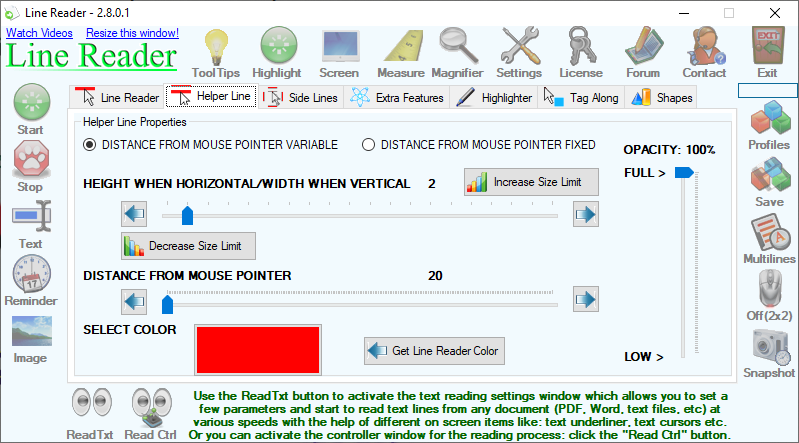
set up the height of the Helper Line when the Helper Line is horizontal (the Helper Line is flipped together with the line reader)
set the width of the Helper Line when the Helper Line is vertical (the Helper Line is flipped together with the line reader)
set the Helper Line distance from the mouse pointer with values from 20 to 250
set the color of the Helper Line just like you can set the color of the line reader
set the color of the Helper Line to be the color of the line reader using the 'Get Line Reader Color' button
the left and right buttons at both ends of each track bar are meant as a shortcut to increasing/decreasing the height or width of the Helper Line
Please notice that none of the functionalities on this page are working unless you the "USE EXTRA FEATURES" check box in the 'Line Reader' tab is checked.
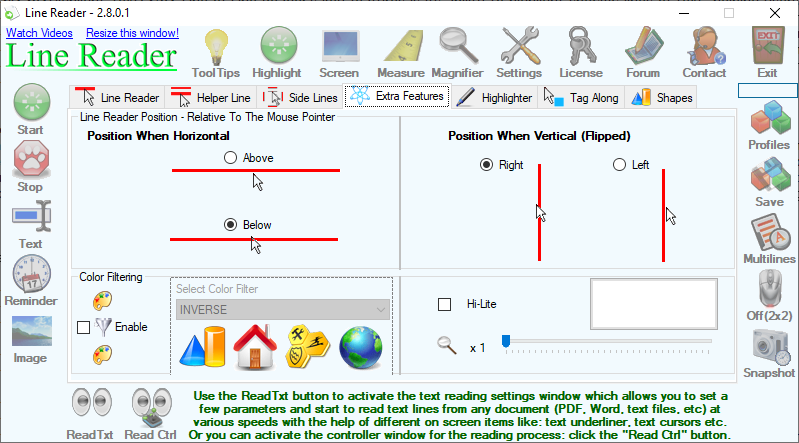
the 'Above' and 'Below' radio buttons are used to specify the position of the line reader when the line reader is horizontal
the 'Right' and 'Left' radio buttons are used to specify the position of the line reader when the line reader is vertical
the 'Enable' button in the 'Color Filtering' section enables the use of color filtering for the line reader
you can select a color filter in the 'Select Color Filter' combo and view the result of color filtering applied on the four preview images below the combo box.
you can use the 'Hi-Lite' button to have a square in the middle of the line reader window and you can also specify the color of this square.
you can also set the zoom factor to be used by Line Reader when using Color Filtering
Please notice that the multi lines can be created only if the line reader is active. When the line reader is stopped and disappears, the multi lines will also disappear.
the 'Multilines' button can be used to generate the multi lines above. Press it again and the multi lines will disappear. Press it again and they will be recreated again.
the 'Multilines' are created at the same distance from each other and this distance is the one set in the 'Helper Line' tab -> DISTANCE FROM MOUSE POINTER.
the 'Multilines' have the same color as the line reader.
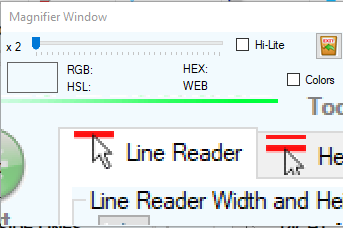
Using the magnifier window you can magnify the current screen position to which the mouse pointer points and also:
set the zoom to any value from 2 to 36
use the "Hi-Lite" functionality to see the actual pixel to which the mouse pointer is over.
see the color of the pixel underneath the cursor. The color is presented using the RGB, HSL, HEX and Web Safe values.
increase the magnifier window (not the zoom) to any size you like:
In the Keyboard Setup tab of the application settings you can set the keys you want for different actions of the applications.
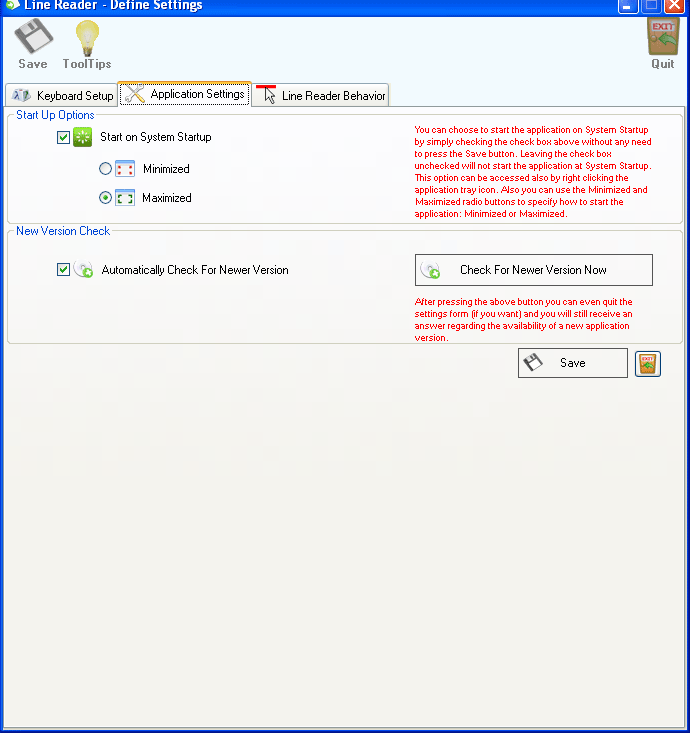
In the Application Settings tab you can
specify whether to start or not the Line Reader application at system start-up
specify if the application should automatically check for new versions at startup (the check happens 10 seconds after the application is started)
you can also check right away if a new version is available for update by using the 'Check For Newer Version Now'
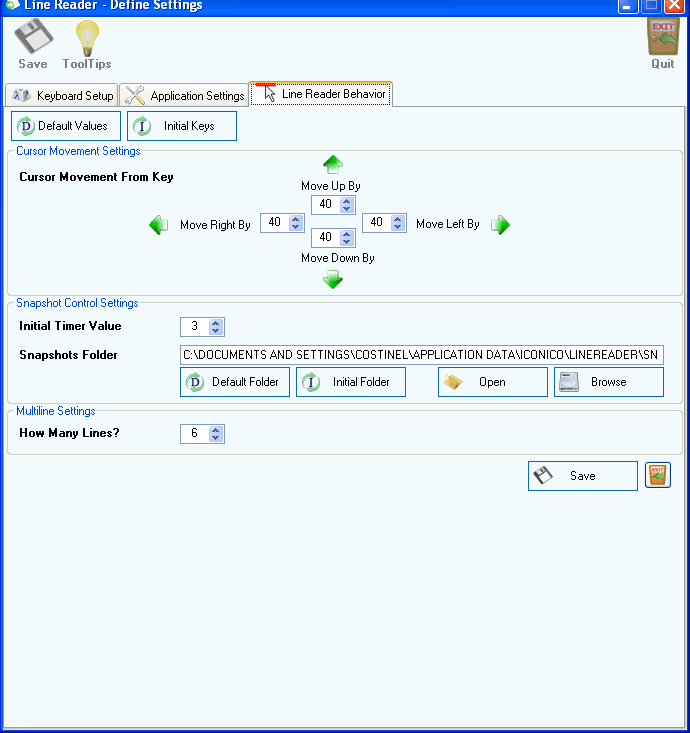
In the 'Line Reader Behavior' tab you can specify:
cursor movement from key values. These values are used when moving the mouse cursor from key combinations. For example CTRL+SHIFT+RIGHT is the default key combination for moving the mouse cursor to the right (in this case by 40 pixels)
initial timer value for the snapshot control window. This is the value to which the timer resets after reaching 0 and the snapshot is taken
the 'Snapshots Folder' is used to store the snapshots taken with the 'Snapshot Control' window
you can also specify how many multi lines to be built when using the Multi Line functionality. The maximum is 30.
Other things to consider:
it's possible at some point to realize that the LEFT, RIGHT and MIDDLE buttons appear not to be working and this happens because:
STEP 1: you started with a normal horizontal line reader with values for example: Width=200 and Height = 2.
STEP 2: Then you flipped it and thus the Width is now 2 and the Height is now 200. Then while the line reader remained flipped you changed the Width = 200 and Height = 2 which gives the impression that the line is horizontal again (even though it is actually flipped).
STEP 3: So when pressing the LEFT, RIGHT and MIDDLE buttons the line doesn't seem to be moved LEFT or RIGHT or to the MIDDLE.
STEP 4: However, the line is moved and to see this you have to increase the Height and set it to a bigger value than 2, for example: 50 and then you will see that the buttons are working.
the tag along windows content like many other properties of the line reader are saved when quitting the form
to access the tag along windows you should use the ALT + TAB key combination from Windows and then once the tag along window has the focus you can use the TAB key to "tab" through its contents.
 Line Reader