Clipboard with history - unlimited Copy and Paste!
Version 1.5
Clipstory gives you a powerful extension to your copy and paste abilities, you can quickly cycle through your entire history of copied text, files,
images, audio and binary data.
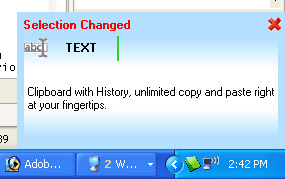
Using keyboard shortcuts a preview popup is shown in the corner of your screen, and this works with any application.
We all use copy and paste—probably about a hundred times a day! Copying and pasting text, files and graphics is one of the most invaluable features of Windows, but the problem is that Windows normally lets you copy and paste only one item at a time.
What's needed is a way to copy and paste to the clipboard, and see the history; That's why we call this application Clipstory!
Just take a look how easy it is, the popup shown here is activated by pressing Ctrl+Shift+Up or Ctrl+Shift+Down to easily show what you're working with:
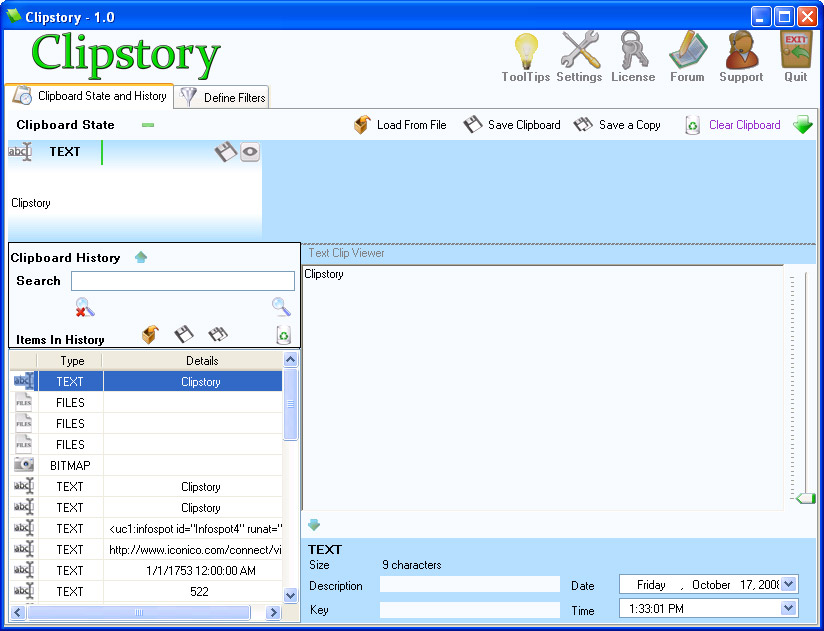
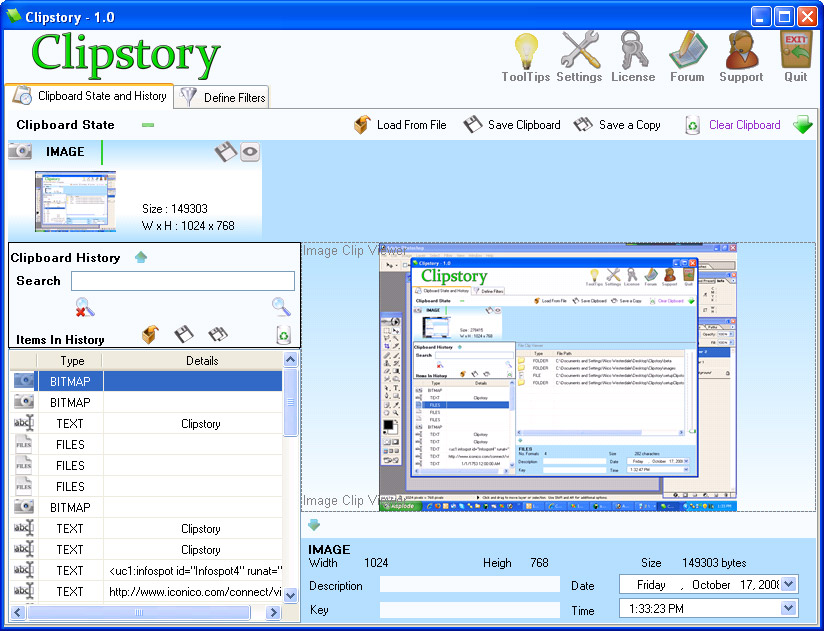
But that's not all! Clipstory's main screen will show you a full history list and enable you to tag items, view additional details, and save clips to disk. It’s like a complete management system for everything you’ve copied, extremely powerful with thousands of uses.
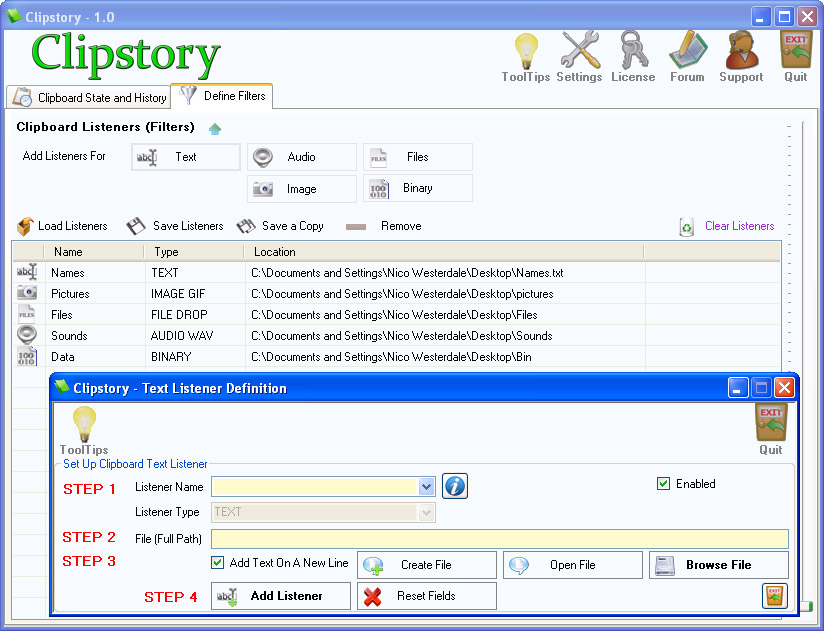
Clipstory also comes with the ability to set up custom filters. You can direct Clipstory to save copied text, files, images, audio and binary data into a folder of your choice. With images you can automatically convert them into specific file formats. So Clipstory is also an automator, allowing you to gather files and information together.
Using Clipstory you can do the following:
Store "Print Screen" images, store any image ever copied to clipboard, store each image clip in its own file on the hard disk, save clipboard images to disk in one of the following formats: BMP, GIF, JPEG, PNG, TIFF, WMF, EMF, EXIF, MEMORYBMP, view images in the application's Image viewer.
Store text clips in History for later access, Get the text from any Web Page, store text clips in a file on the hard disk, view text in the application's Text viewer.
Store any Web Page (CTRL+A in a browser followed by CTRL+C) in a file on the hard disk (preserves the web page’s formatting).
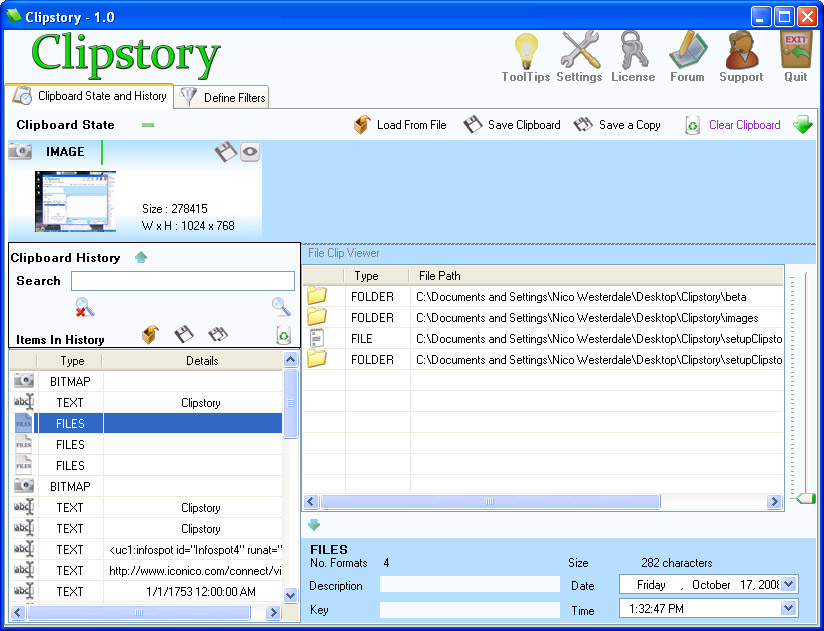
Remember file/folder locations on your Hard Disk, automatically store files in a single folder on your Hard Disk using a file listener (just CTRL+C any file in any location), Open file/folders from the application's File/Folder viewer.
Store any binary data in clipboard history: store Visual Studio controls, Microsoft Office shapes and so on, store binary clips in a file on the hard disk, view binary clips in the application's binary clip viewer.
Store audio clips in History, store each audio clip in its own file on the hard disk, play the audio clip.
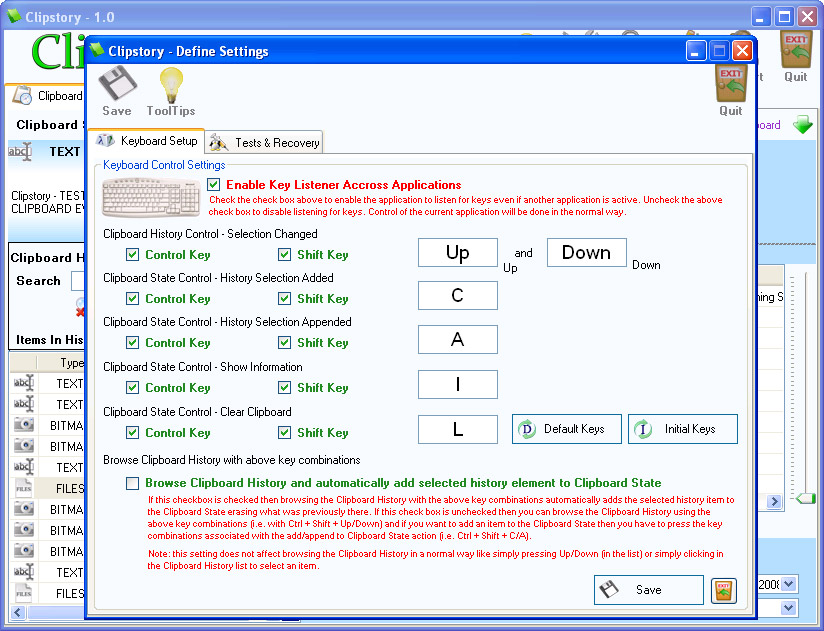
Access stored clips while you are working in other applications such as Adobe, MS Paint, MS Word, Notepad etc. This is done using either default or user-defined key combinations like: CTRL + SHIFT + C, CTRL + SHIFT + A, CTRL + SHIFT + I, CTRL + SHIFT + L, CTRL + SHIFT + UP, CTRL + SHIFT + DOWN.
Play a sound each time a new TEXT, HTML, IMAGE, AUDIO, FILE or BINARY clip is stored in Clipstory. You can define a different sound for each clip type.
View the clipboard state by simply hovering over the Clipstory tray icon. Alternatively you can view the current history selection.
Select a color for each clip in the History section.
Key Takeaway: Clipstory allows:
storing clipboard clips such as Text, Image, Audio, File and Binary data and access these clips later.
storing clipboard clips in a selected location on the hard disk as they appear in the Clipboard.
viewing clipboard State by simply hovering over the Clipstory tray icon.
accessing stored clipboard clips through the user interface or a key combination.
Here are several screenshots of Clipstory's features:
You can click on any of the images below to see a higher-resolution version of each image.
Here is what ChatGPT says you can do with Clipstory:
Keep a complete history of everything you copy to the Windows clipboard.
Store copied text in your clipboard history for later access.
Store copied images in your clipboard history.
Store “Print Screen” images automatically.
Store copied audio clips in your clipboard history.
Store copied files and folders in your clipboard history.
Quickly cycle through your clipboard history using keyboard shortcuts.
Preview your clipboard history in a popup while working in any application.
Access previously copied clips while working in applications such as Microsoft Word, Notepad, MS Paint and Adobe applications.
Retrieve an older clipboard item even after you have copied many other items.
View your complete clipboard history in the main Clipstory window.
Search through and manage your stored clipboard items.
Tag clipboard items so they can be identified and organized more easily.
Assign different colors to individual clipboard items.
View additional information about stored clipboard clips.
Save text clips to files on your hard disk.
Save copied images as individual files on your hard disk.
Save clipboard images in formats such as BMP, GIF, JPEG, PNG, TIFF, WMF, EMF, EXIF and MEMORYBMP.
View stored images using the built-in Image viewer.
View stored text using the built-in Text viewer.
Copy the contents of a web page and save it to disk while preserving the web page's formatting.
Remember the locations of files and folders that you copy.
Automatically collect copied files into a folder of your choice.
Use a file listener to automatically gather files by simply copying them with Ctrl+C.
View stored files and folders using the built-in File/Folder viewer.
Save audio clips as individual files on your hard disk.
Play stored audio clips later.
Automatically save different types of clipboard content to folders of your choice.
Create custom filters for text, images, audio, files and binary clipboard data.
Automatically convert copied images to selected image formats when saving them.
Use Clipstory as an automatic collector for files and information.
Play a sound whenever a new text, HTML, image, audio, file or binary clip is stored.
Assign a different notification sound to each type of clipboard content.
Quickly see the current clipboard state by hovering over the Clipstory tray icon.
View the current history selection directly from the Clipstory interface.
Use default keyboard shortcuts to access different types of stored clipboard content.
Define your own keyboard combinations for accessing Clipstory features.
Continue working in your current application while accessing your clipboard history.
Keep thousands of previously copied items available instead of being limited to the single item normally available in the Windows clipboard.
Use Clipstory as a convenient personal archive of text, images, files, audio and other information copied during your work.
Gather information from different applications and sources into one organized clipboard history.
Retrieve previously copied information without having to copy it again from the original source.
Use Clipstory as a clipboard history, clipboard manager, file collector and clipboard automation tool.
Clipstory runs on Windows XP, Vista, 7, 8/8.1, 10, and 11, in both 32-bit and 64-bit versions.
You may download the feature-limited trial, and evaluate the software for as long as you need
.NET Framework required
The software is licensed per computer
Free lifetime upgrades
Free technical support via email
The registration code will be sent by e-mail after your purchase is confirmed
A license is only $14.50
Purchase Clipstory using one of the following options:
Buy via FastSpring at 66% off:
 Clipstory